At a glance
What we built
Nahl II brings recorded missions into a desktop workspace where teams can open, analyse and replay each mission.
| Product | Nahl II |
|---|---|
| Interfaces shown | Windows desktop application |
| Technology | C# · Windows Presentation Foundation |
| Core work | Open and load recorded missions · Analysis and mission replay · Dedicated configuration workspace |
Product flow
How it works
Open and load recorded missions
Analysis and mission replay
Dedicated configuration workspace
The interface
Inside the product
Desktop interface · 01
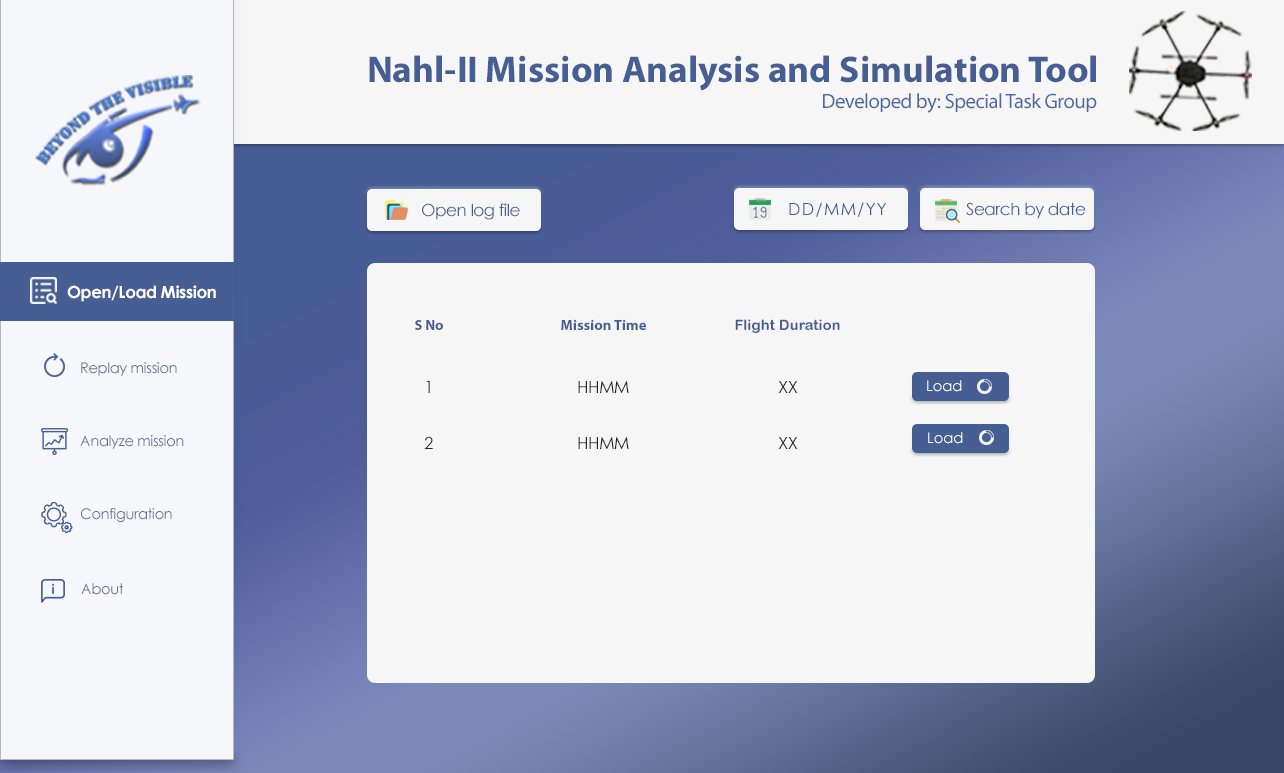
Find and load a recorded mission
The original desktop design brings file opening, date search, mission time and flight duration into one loading workspace.
Desktop interface · 02
Replay a mission on the map
The replay design places the plotted flight path beside playback controls, live values and instrument readouts.
Desktop interface · 03
Examine replay data as a graph
A second replay view turns the recorded sequence into a graph with controls for examining a selected range.
Desktop interface · 04
Analyse recorded parameters
The analysis screen brings plotted curves, parameter selection, flight data and an automatic analysis action into a single workspace.
Desktop interface · 05
Set the review configuration
Configuration gives reviewers controls for limits and simulation speed in a dedicated screen before they return to a mission.
Desktop interface · 06
See how the tool fits together
The original About view explains the loading, analysis, simulation and replay modules as one desktop application.
Design notes
Decisions behind the experience
The challenge
Give a recorded mission a place to be examined
- Open a recorded mission
- Set the review configuration
- Analyse and replay the mission
Read the context
A flight recording is useful only when the people reviewing it can find the right mission and work through it in context. This desktop application brought mission loading, configuration, analysis and replay into one Windows workspace. It was shaped around the review that follows a flight, when an analyst needs to move from a saved record to an understanding of what happened.
The project brief called for a dedicated front end and back end rather than a collection of loose files and utilities. The resulting structure gives each stage of review its own place while keeping the mission itself at the centre of the workflow.
Mission library
Start with the right flight record
- Open a mission log
- Find a flight by date
- Compare mission time and flight duration before loading
Read the context
The first screen makes the entry point explicit: open a log file or search recordings by date. A mission list shows its time and flight duration, so the reviewer has enough context to select a record before opening it. Each row then offers a direct load action.
This matters in repeated review work. The person at the workstation can identify a flight from its date and duration, load it, and continue into analysis without relying on filenames alone. The original interface keeps the search controls and mission list together, with the other stages always visible in the side navigation.
Review workflow
Keep configuration, analysis and replay connected
- Select the mission record
- Work in a dedicated configuration area
- Move between analysis and replay
Read the context
The application was organised around four named tasks: Open/Load Mission, Configuration, Analyze Mission and Replay Mission. That separation makes the next action clear at each step. A reviewer chooses the record, works with the required configuration, inspects the mission, and returns to its sequence through replay.
Configuration has its own workspace because it is a different kind of decision from selecting a mission or reading its analysis. Replay is equally distinct: it gives the reviewer a way to revisit the recorded mission instead of treating the analysis as a static endpoint. The navigation holds these stages together as one continuous desktop task.
Interface design
A task-led desktop layout for focused review
- Persistent module navigation
- Date search beside file opening
- Mission information in a scannable table
Read the context
The original design uses a persistent left rail for the major modules and a broad working area for the current task. On the loading screen, the controls sit above a clear mission table. The reviewer can see where they are, what information is available, and where the next stage sits without opening a series of separate windows.
The layout gives priority to the record being examined rather than decorative dashboard metrics. Search and load actions are close to the mission list; analysis, replay and configuration remain visible but do not compete with the active task. That hierarchy is suited to a desktop tool used for deliberate, repeated inspection.
Delivery plan
Build the modules, then test them as one review flow
- Requirements and module development
- Component and front-end integration
- End-to-end testing before release
Read the context
The original project plan began with requirements analysis, then scheduled the Open/Load, Configuration, Analyze, Replay and About modules across the development phase. That order gave the team an entry point for a recorded mission before the deeper analysis and playback work was joined to it.
Integration testing followed the module build. Components, the front end and the full workflow had their own checks before the planned release. The sequence matters because a reviewer needs a mission to load, analyse and replay coherently; five separate screens would not be enough on their own.
Engineering approach
Built around a Windows desktop workflow
- C# and Windows Presentation Foundation
- Front end and back end within one desktop application
- Requirements, development and integration testing planned as distinct stages
Read the context
The agreed technical direction was a C# application using Windows Presentation Foundation. The desktop form fits the work: mission files are opened locally, the reviewer moves among dedicated modules, and the interface has room for records and analysis on a standard workstation.
The delivery plan separated requirements analysis, interface and application development, integration testing, and release preparation. Those stages gave the team a way to establish the mission workflow first, build its modules, and then check how the parts worked together. The product story is the movement from a recorded flight to a reviewable mission, expressed as one coherent application.
Design and development
What powers it
Platform and technology
C# · Windows Presentation Foundation
Core capabilities
- Open and load recorded missions
- Analysis and mission replay
- Dedicated configuration workspace
Questions about the product
Questions about this product
What does this product help people do?
Open recorded missions, examine the details and replay the moments that matter.
Which screens can I explore?
Find and load a recorded mission, Replay a mission on the map, Examine replay data as a graph, Analyse recorded parameters.
What capabilities are covered?
Open and load recorded missions, Analysis and mission replay, Dedicated configuration workspace.
Enterprise projects